Adding a new Publication
This guide applies to adding a Working Paper, Op-Ed, or Journal Article, and more to the CERG website. The process is slightly different for each type.
Upload the Working Paper PDF to AEM and Google Drive
Prerequisites
You must be signed into your SFU account and have access to AEM in order to make changes. If you do not have access, please contact Andy to request access.
You also must have access to the CERG Google Drive folder in order to upload the PDF. If you do not have access, please contact Omri to request access.
You must have the PDF of the Working Paper ready to upload and the necessary content ready to fill in the page (title, overview, authors, etc.).
Upload the document to the Publications folder in AEM's DAM (Digital Asset Manager) and to the Working Papers folder in Google Drive:
Publications Folder in DAM Publications Folder in Google Drive
After uploading in Google Drive, copy the link to the PDF by right clicking on the file and selecting Share -> Copy link. We will need that link later to add the PDF Embed.
Updating the working paper
If you need to update the Working Paper PDF, AEM has a feature to overwrite the existing file. That way, you can simply upload the new PDF and not have to worry about changing anything:
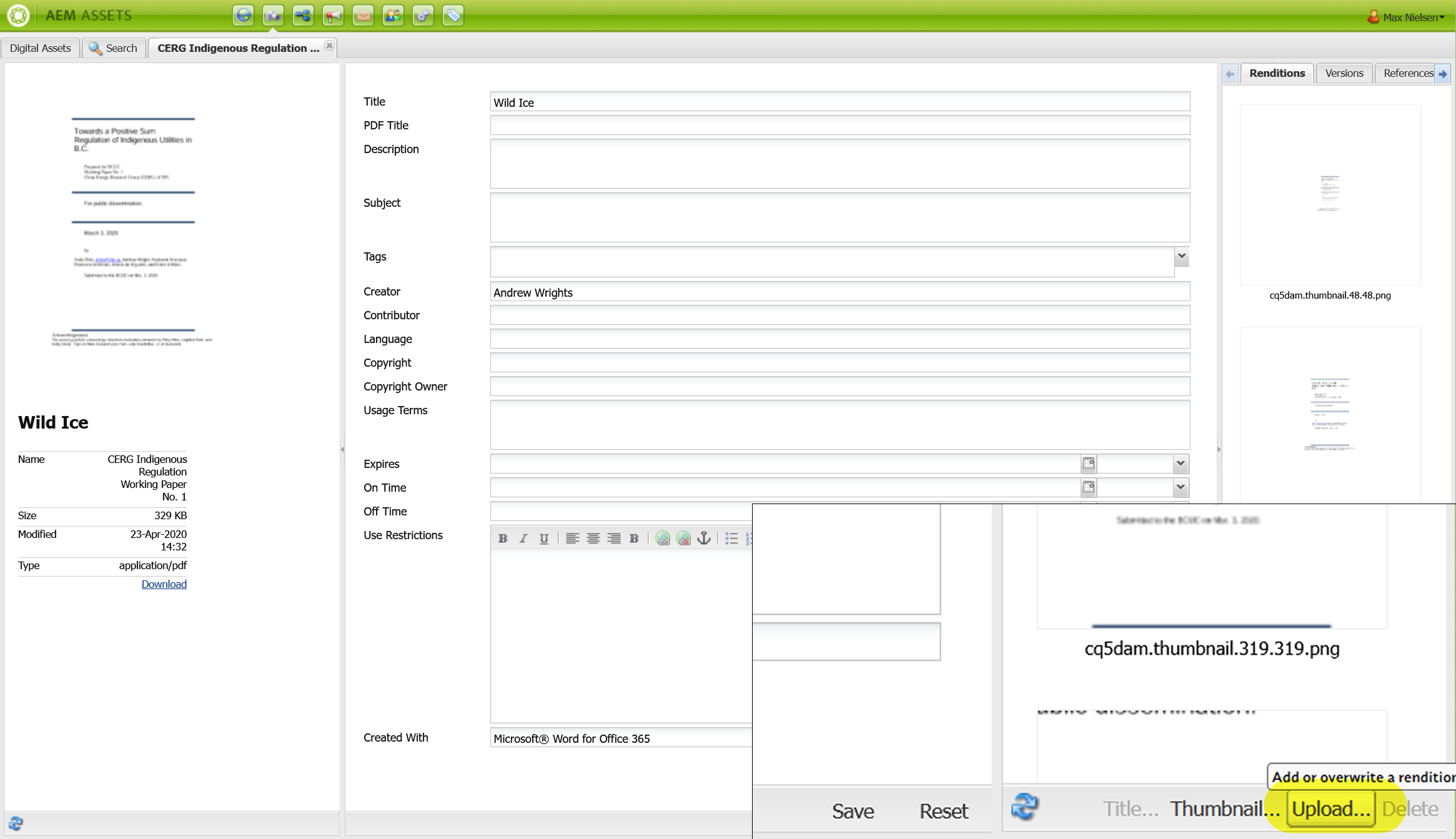
Similar with Google Drive: upload the file with the exact same file name and it will overwrite the existing file. No need to change the link in the page.
Copy Working Paper template
In AEM, navigate to the Publications & Multimedia page and copy the Working Paper template.
- Go to the Publications & Multimedia page
- Right click on the
Working Paper Template (2026)and selectCopy.] - Click
Pasteto paste the template. Change theCopy nameto this structure:wp-xx-short-titlewherexxis the number of the Working Paper andshort-titleis a 3-6 word keywords of the title (e.g.,wp-21-fossil-fuel-alternatives-economy-diversification). - The new page will show up at the end of the list of pages. You may have to go to the next page to see it.
Fill in Page Properties
Here we add the following information into the Page Properties of the new Working Paper page:
| Content to be added | Type of content | Where it goes |
|---|---|---|
| Title | The first portion of the Working Paper title, before the colon (if applicable) | Basic -> Title |
| Tags | The keywords associated with the Working Paper | Basic -> Tags/Keywords |
| Date | The date the Working Paper was published (both short 09/13/2026 and long formats September 13, 2026) |
Basic -> Date and Advanced -> Custom Properties -> custom-publication-date |
| Subtitle (if applicable) | The second portion of the Working Paper title, after the colon (if applicable) | Basic -> More Titles and Description -> Subtitle |
| Overview | A brief layman's summary of the Working Paper's content (max. 70 words) | Basic -> More Titles and Description -> Description |
| Working Paper Number | The number assigned to the Working Paper | Advanced -> Custom Properties -> custom-publication-type |
| Image (if applicable) | The cover image of the Working Paper as a 3:2 (Carousel) aspect ratio |
Image |
- Open up the page.
- Select
Page Propertiesfrom thePagemenu. - Go through the three tabs in the Page Properties dialog and fill in the information above. If you don't have a cover image, you can leave the image field blank.
Filling in this information in Page Properties will automatically populate the Working Paper page with that information.
Adding Tags
Tags are used to filter Working Papers by topic on the Publications & Multimedia page and Agrivoltaics page and to connect news items.
You must include the following tags for the Working Paper in the following order to appear in the correct places:
| Type of tag | Why | Tag Name |
|---|---|---|
| Topic | To identify the topic of the Working Paper | See a list of topics here. |
| Publication Number | The number assigned to the Working Paper | X where X is the number of the Working Paper (e.g. 21) |
| Publication Medium | To identify it as a Working Paper; already on the template | Working Paper working_paper |
Topic tag must come first
Due to AEM restrictions, the topic tag must be the first tag in the list. If it is not, the Working Paper will not show the topic throughout the site.
Video filling in Page Properties [coming soon]
Editing the Working Paper page
While most content is added through Page Properties, some content is added directly to the page. This includes:
| Content to be added | Type of content | Where it goes |
|---|---|---|
| Authors | The authors of the Working Paper | Red box component |
| Working Paper Download Button | The link to download the Working Paper | Red box component |
| Press Release (if applicable) | The link to download the Press Release | Red box component |
| PDF Embed | The PDF Google Drive link | Green HTML component below red box |
| Videos (if applicable) | Any videos related to the Working Paper | Green HTML component beside red box |
| News | Setting up to automatically display news about the Working Paper | List component that says "No Results Found" |
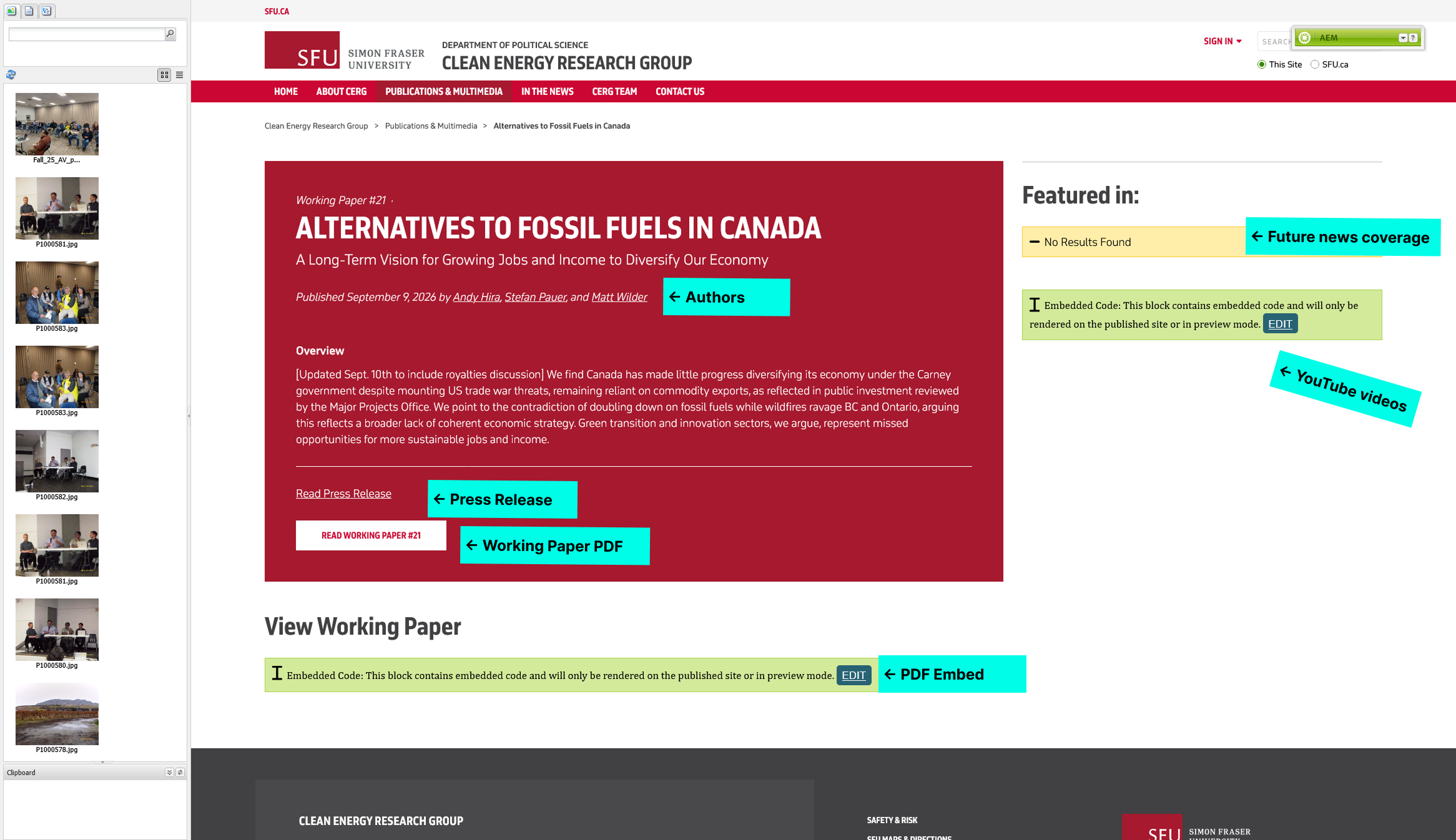
The location of each piece of content that needs to be changed
Adding Authors and PDF Link
- Right click on the red box component and select
Edit. - Enter the names of the authors of the Working Paper, linking to their CERG profile or LinkedIn (if available).
- Change the link of the Press Release button to the Press Release PDF. Delete if there's no Press Release.
- Change the link of the Working Paper button to the Working Paper PDF.
Video showing how to add authors and PDF links
Adding PDF Embed
- Ensure you've uploaded the PDF to Google Drive and copied the link to it.
- Below the red box, click the green HTML component's
Editbutton. - In the HTML editor, paste the Google Drive link to the PDF that you copied earlier into the quotation marks
""of thesrcattribute of the<iframe>tag. - Change the ending of the link from
/view?usp=drive_linkto/preview. This will allow the PDF to be embedded in the page instead of opening in a new tab. - Save the changes and close the HTML editor.
Video showing how to add PDF embed
Adjust "Featured In" section
Adding related YouTube video (i.e. webinar recordings)
- Beside the red box, click the green HTML component's
Editbutton. - In the HTML editor, add any videos related to the Working Paper. If there are no videos, delete the entire
<div>element that contains the "Featured In" section.
Follow the instructions in YouTube video feeds to add specific videos to the feed.
Configure related news list
Please follow instructions carefully
Please do not alter any other setting or text in the List component. It might break.
- Right click on the List component beside the red box and select
Edit. - Go to the
Advanced Searchtab -
At the bottom of the text box, there should be a line that says:
2_property.value=politics:cerg/publication/number/X -
Change the
Xto the number of the Working Paper (e.g.21). - Press the
OKbutton. If you don't have any news items related to the Working Paper, it will say "No Results Found". If you do have news items, they will automatically show up in this section.
Video showing how to configure the news list
Activate
You can preview the page by clicking the Preview button in your toolbar and reloading the page.
If everything looks good and the paper is ready for publication, Activate the page to save your changes and publish the paper.