Adding a new Publication
Prerequisites
Acquire necessary content to fill out the page:
- Working Paper PDF
- Executive Summary or Press Release(if applicable)
- Title
- Subtitle (if applicable)
- Topic (choose from the list of topics)
- Date of publication
- Authors
- Overview (max. 70 words)
You must have access to the CERG Google Drive folder in order to upload the PDF. If you do not have access, please contact Omri to request access.
- URL link to the Op-ed
- Title
- Subtitle (if applicable)
- Topic (choose from the list of topics)
- Date of publication
- Publication platform (e.g., The Tyee, The Conversation, etc.)
- URL link to the Journal Article
- Title
- Subtitle (if applicable)
- Topic (choose from the list of topics)
- Date of publication
- Authors
- Abstract (~70 words)
- File (preferably PDF) or URL link
- Title
- Subtitle (if applicable)
- Topic (choose from the list of topics)
- Date of publication
- Authors
- Overview (max. 70 words)
This guide applies to adding a Working Paper, Op-Ed, or Journal Article, and more to the CERG website. The process is slightly different for each type.
Upload PDF (if applicable)
Applies only to Working Papers and other file publications (i.e. Scorecards, Infographics, etc.)
Upload the document to the Publications folder as a PDF in AEM's DAM (Digital Asset Manager) and Google Drive:
Publications Folder in DAM Publications Folder in Google Drive
After uploading in Google Drive, copy the link to the PDF by right clicking on the file and selecting Share -> Copy link. We will need that link later to add the PDF Embed.
Updating a publication PDF
If you need to update the publication's PDF, AEM and Google Drive have features to overwrite the existing file. That way, you can simply upload the new PDF and not have to worry about changing any links on the page. The steps are slightly different for AEM and Google Drive.:
- In AEM, go to the DAM (Digital Asset Manager) and find the existing file.
- Open the file and scroll down the right sidebar to find the current file version (usually
original). - Click on the current version of the file and then click
Uploadto upload the new PDF. - It will show it is
"Processing Renditions". You can safely clickSaveand exit the page. - Activate the file to save your changes. The new PDF will now be available on the site.
Overwriting/updating a Working Paper PDF in AEM
- Rename the new PDF to match the existing file name shown in Google Drive.
- Upload the file and click "Replace" to overwrite the existing file.
- Your PDF embed on the site should now be updated.
Overwriting/updating a Working Paper PDF in Google Drive
Copy Publication template
In AEM, navigate to the Publications & Multimedia page and copy the Working Paper template.
- Go to the Publications & Multimedia page
- Right click on the
Working Paper Template (2026)and selectCopy. - Click
Pasteto paste the template. Change theCopy nameto this structure:wp-xx-short-titlewherexxis the Working Paper number andshort-titleis 3-6 keywords from the actual title (e.g.,wp-21-fossil-fuel-alternatives-economy-diversification). - The new page will show up at the end of the list of pages. You may have to go to the next page to see it.
In AEM, navigate to the Publications & Multimedia page and copy the Op-ed template.
- Go to the Publications & Multimedia page
- Right click on the
Op-ed Template (2026)and selectCopy. - Click
Pasteto paste the template. Change theCopy nameto this structure:op-ed-xx-short-titlewherexxis the nth Op-ed CERG has published andshort-titleis 3-6 keywords from the actual title (e.g.,op-ed-10-canada-remake-economy-critical-minerals). - The new page will show up at the end of the list of pages in AEM. You may have to go to the next page to see it.
In AEM, navigate to the Publications & Multimedia page and copy the Journal Article template.
- Go to the Publications & Multimedia page
- Right click on the
Journal Article Template (2026)and selectCopy. - Click
Pasteto paste the template. Change theCopy nameto this structure:article-xx-short-titlewherexxis the nth Journal Article CERG has published andshort-titleis 3-6 keywords from the actual title (e.g.,article-3-geopolitics-green-transition-critial-minerals). - The new page will show up at the end of the list of pages in AEM. You may have to go to the next page to see it.
In AEM, navigate to the Publications & Multimedia page and copy the Other Publication template.
- Go to the Publications & Multimedia page
- Right click on the
Other Publication Template (2026)and selectCopy. - Click
Pasteto paste the template. Change theCopy nameto this structure:other-xx-short-titlewherexxis the nth Other Publication CERG has published andshort-titleis 3-6 keywords from the actual title (e.g.,other-1-canada-fossil-fuel-scorecard). - The new page will show up at the end of the list of pages in AEM. You may have to go to the next page to see it.
Example: Copying the Working Paper template
Fill in Page Properties
Add the following information into the Page Properties of the new publication:
| Content to be added | Type of content | Example | Where it goes |
|---|---|---|---|
| Title | First portion of the Working Paper title, before the colon (if applicable) | Agrivoltaics in British Columbia |
Basic -> Title |
| Tags | The topic & the Working Paper tags | Agrivoltaics, Working Paper |
Basic -> Tags/Keywords |
| Short Date | Published date of Working Paper | mm/dd/yyyy: 03/01/2026 |
Basic -> Date |
| Subtitle (if applicable) | The second portion of the Working Paper title, after the colon (if applicable) | Setting up the Provincial Conversation |
Basic -> More Titles and Description -> Subtitle |
| Overview | A layman's summary of the Working Paper's content (max. 70 words) | See example page for example | Basic -> More Titles and Description -> Description |
| Long Date | Published date of Working Paper | March 2026 |
Advanced -> Custom Properties -> custom-publication-date |
| Working Paper Number | "Working Paper #" + The number assigned to the Working Paper | Working Paper #18 |
Advanced -> Custom Properties -> custom-publication-type |
| Image (if applicable) | Cover image of the Working Paper as a 3:2 (Carousel) aspect ratio |
See example page for example | Image |
| Content to be added | Type of content | Example | Where it goes |
|---|---|---|---|
| Title | First portion of the Op-ed title, before the colon (if applicable) | Two Solutions for the Strait of Hormuz Straitjacket |
Basic -> Title |
| Tags | The topic & the Op-ed tags | Other Works, Op-ed |
Basic -> Tags/Keywords |
| Short Date | Published date of Op-ed | mm/dd/yyyy: 08/24/2026 |
Basic -> Date |
| Subtitle (if applicable) | Op-ed subtitle (Second portion of the title, after the colon, if applicable) | Existing pipelines can blunt Iran’s leverage today, but renewables are the only way to end it. |
Basic -> More Titles and Description -> Subtitle |
| Op-ed Link | URL link to the Op-ed | https://opencanada.org/two-solutions-for-the-strait-of-hormuz-straitjacket/ |
Advanced -> Redirect |
| Long Date | Published date of Op-ed | August 24, 2026 |
Advanced -> Custom Properties -> custom-publication-date |
| Publication Platform | "Op-ed" + the platform the Op-ed was published on | Op-ed in Open Canada |
Advanced -> Custom Properties -> custom-publication-type |
| Content to be added | Type of content | Example | Where it goes |
|---|---|---|---|
| Title | First portion of the Journal Article title, before the colon (if applicable) | The macro view of solar policy |
Basic -> Title |
| Tags | The topic & the Journal Article tags | Energy Policy, Journal Article |
Basic -> Tags/Keywords |
| Short Date | Published date of Journal Article | mm/dd/yyyy: 11/22/2024 |
Basic -> Date |
| Subtitle (if applicable) | Journal article subtitle (Second portion of the title, after the colon, if applicable) | The case for supporting utility-scale power |
Basic -> More Titles and Description -> Subtitle |
| Abstract | Abstract of the Journal Article (try to keep under 70 words) | See example page for example | Basic -> More Titles and Description -> Description |
| Long Date | Published date of Journal Article | November 22, 2024 |
Advanced -> Custom Properties -> custom-publication-date |
| Content to be added | Type of content | Example | Where it goes |
|---|---|---|---|
| Title | First portion of the publication title, before the colon (if applicable) | Canadian Scorecard for Fossil Fuels |
Basic -> Title |
| Tags | The topic & the Other Publication tags | Energy Policy, Other Publication |
Basic -> Tags/Keywords |
| Short Date | Published date of publication | mm/dd/yyyy: 09/05/2025 |
Basic -> Date |
| Subtitle (if applicable) | Publication's subtitle (Second portion of the title, after the colon, if applicable) | Comprehensive cost-benefit analysis of revenues, jobs and incomes of FF vs. costs of climate change |
Basic -> More Titles and Description -> Subtitle |
| Overview | A layman's summary of the publication's content (max. 70 words) | See example page for example | Basic -> More Titles and Description -> Description |
| Long Date | Published date of publication | September 5, 2025 |
Advanced -> Custom Properties -> custom-publication-date |
| Publication Type | The specific type of publication | Scorecard |
Advanced -> Custom Properties -> custom-publication-type |
| Image (optional) | Image with a 3:2 (Carousel) aspect ratio |
Image |
- Open up the page.
- Select
Page Propertiesfrom thePagemenu. - Go through the three tabs in the Page Properties dialog and fill in with the information above. If you don't have a cover image, you can leave the image field blank.
Filling in this information in Page Properties will automatically populate the Working Paper page with that information.
Topic tag must come first
Due to AEM restrictions, the topic tag must be the first tag in the list. If it is not, the Working Paper will not show the topic throughout the site.
Example: Filling in a Working Paper Page Properties
Fill in information on the page
While most content is added through Page Properties, some content is added directly to the page. This includes:
| Content to be added | Type of content | Example | Where it goes |
|---|---|---|---|
| Authors | Authors of the Working Paper (WP), including a link to their CERG profile or LinkedIn | Andy Hira, Stefan Pauer, and Omri Haiven |
Red box component |
| Working Paper Link | Link to view/download the WP PDF | Relative link in AEM | Red box component |
| Press Release/Executive Summary (if applicable) Link | Link to view/download the Press Release PDF | Relative link in AEM | Red box component |
| PDF Embed | Google Drive PDF link with /preview at the end of the URL |
https://drive.google.com/file/d/1gpcUEHomNM32ShuqsGKg7xIVmY5l5n9p/preview |
Green HTML component below red box |
| Videos (if applicable) | Any videos related to the WP | https://www.youtube.com/watch?v=nEA5Umu6B6A |
1st green HTML component beside red box |
| News | Any news links mentioning the WP | HTML copied from CERG's news manager | 2nd green HTML component beside red box |
| Events (if applicable) | Any events related to the WP | https://www.sfu.ca/politics/cerg/events/fall-2026-indigenous-agrivoltaics.html |
List component that says "No Results Found" |
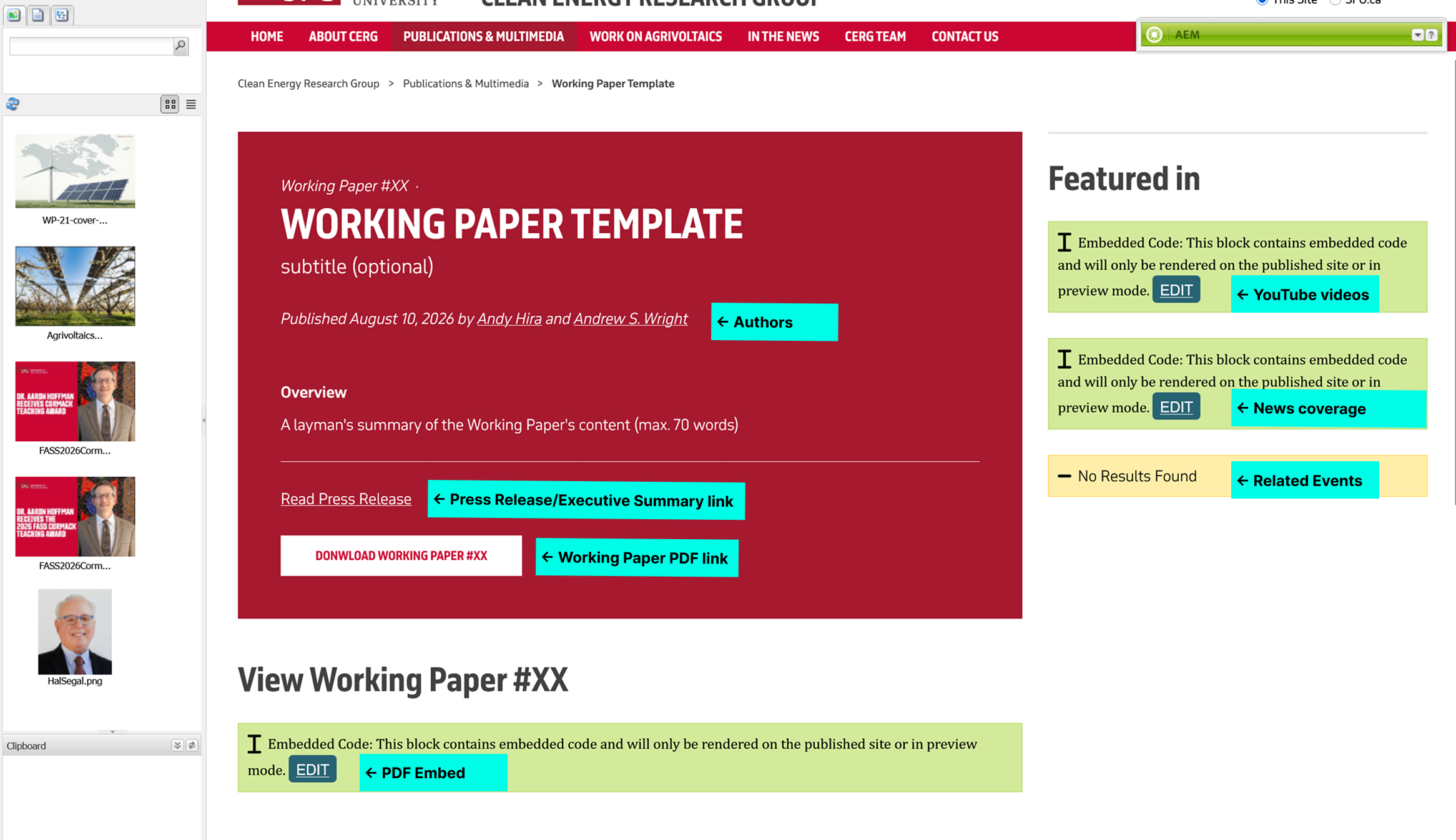
Content to change on the Working Paper page
Not applicable for Op-eds. All content is added through Page Properties because Op-ed pages redirect to the original publication. Continue to the Activate step.
| Content to be added | Type of content | Example | Where it goes |
|---|---|---|---|
| Authors | Authors of the Journal Article, including a link to their CERG profile or LinkedIn | Andy Hira and Prasanna Krishnan |
Red box component |
| Journal Article Link | Link to the article | https://doi.org/10.1016/j.solcom.2024.100096 |
Red box component |
| Press Release/Executive Summary (if applicable) Link | Link to view/download the Press Release PDF | Relative link in AEM | Red box component |
| Videos (if applicable) | Any videos related to the article | https://www.youtube.com/watch?v=nEA5Umu6B6A |
1st green HTML component beside red box |
| News | Any news links mentioning the article | HTML copied from CERG's news manager | 2nd green HTML component beside red box |
| Events (if applicable) | Any events related to the article | https://www.sfu.ca/politics/cerg/events/fall-2026-indigenous-agrivoltaics.html |
List component that says "No Results Found" |
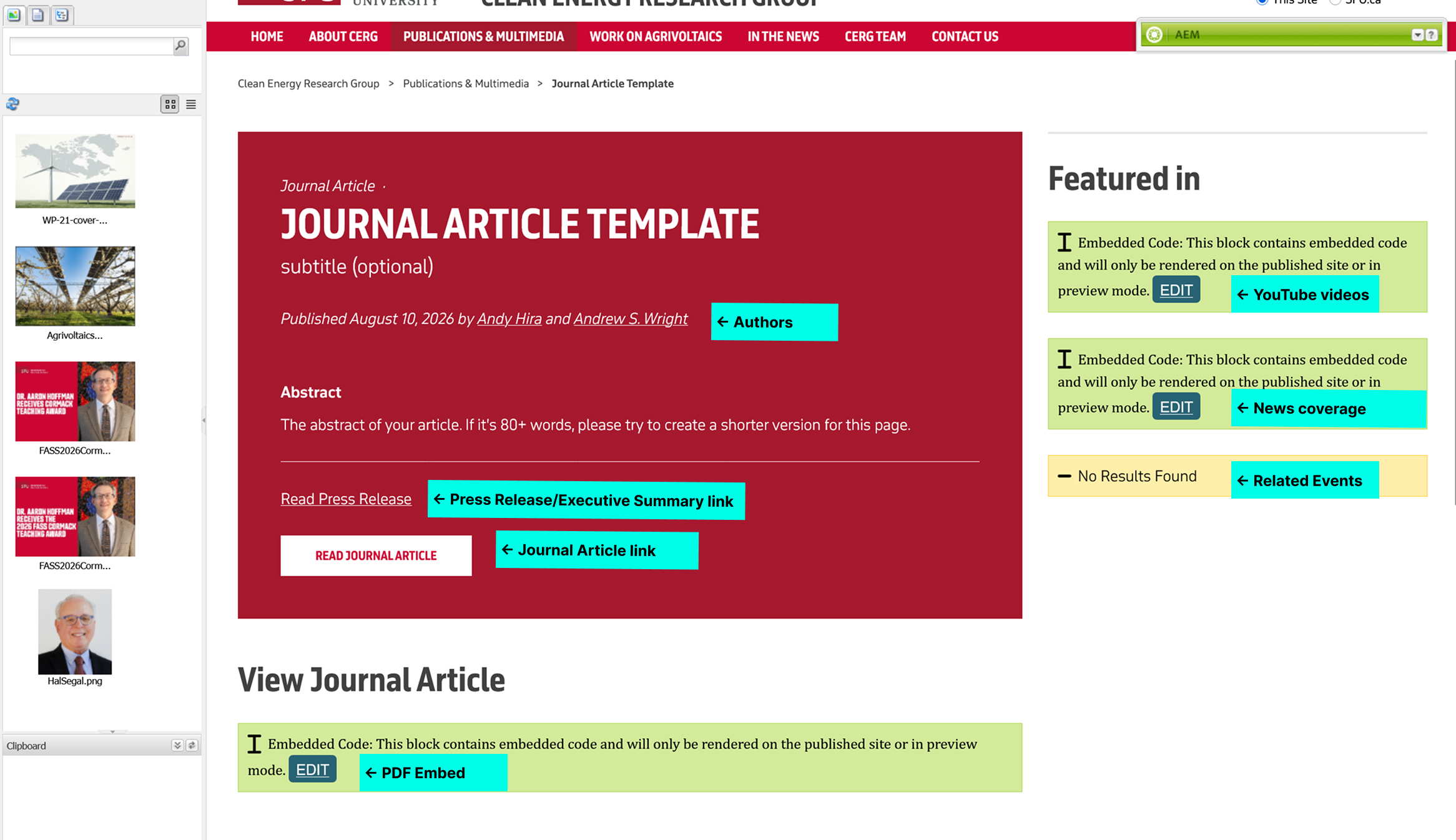
Content to change on the Journal Article page
| Content to be added | Type of content | Example | Where it goes |
|---|---|---|---|
| Authors | Authors of the publication, including a link to their CERG profile or LinkedIn | Andy Hira and Prasanna Krishnan |
Red box component |
| Publication Link | Link to the publication | 'https://www.sciencedirect.com/science/article/pii/S2772940024000304?via%3Dihub' | Red box component |
| Press Release/Executive Summary (if applicable) Link | Link to view/download the Press Release PDF | Relative link in AEM | Red box component |
| Videos (if applicable) | Any videos related to the publication | https://www.youtube.com/watch?v=nEA5Umu6B6A |
1st green HTML component beside red box |
| News | Any news links mentioning the publication | HTML copied from CERG's news manager | 2nd green HTML component beside red box |
| Events (if applicable) | Any events related to the publication | https://www.sfu.ca/politics/cerg/events/fall-2026-indigenous-agrivoltaics.html |
List component that says "No Results Found" |
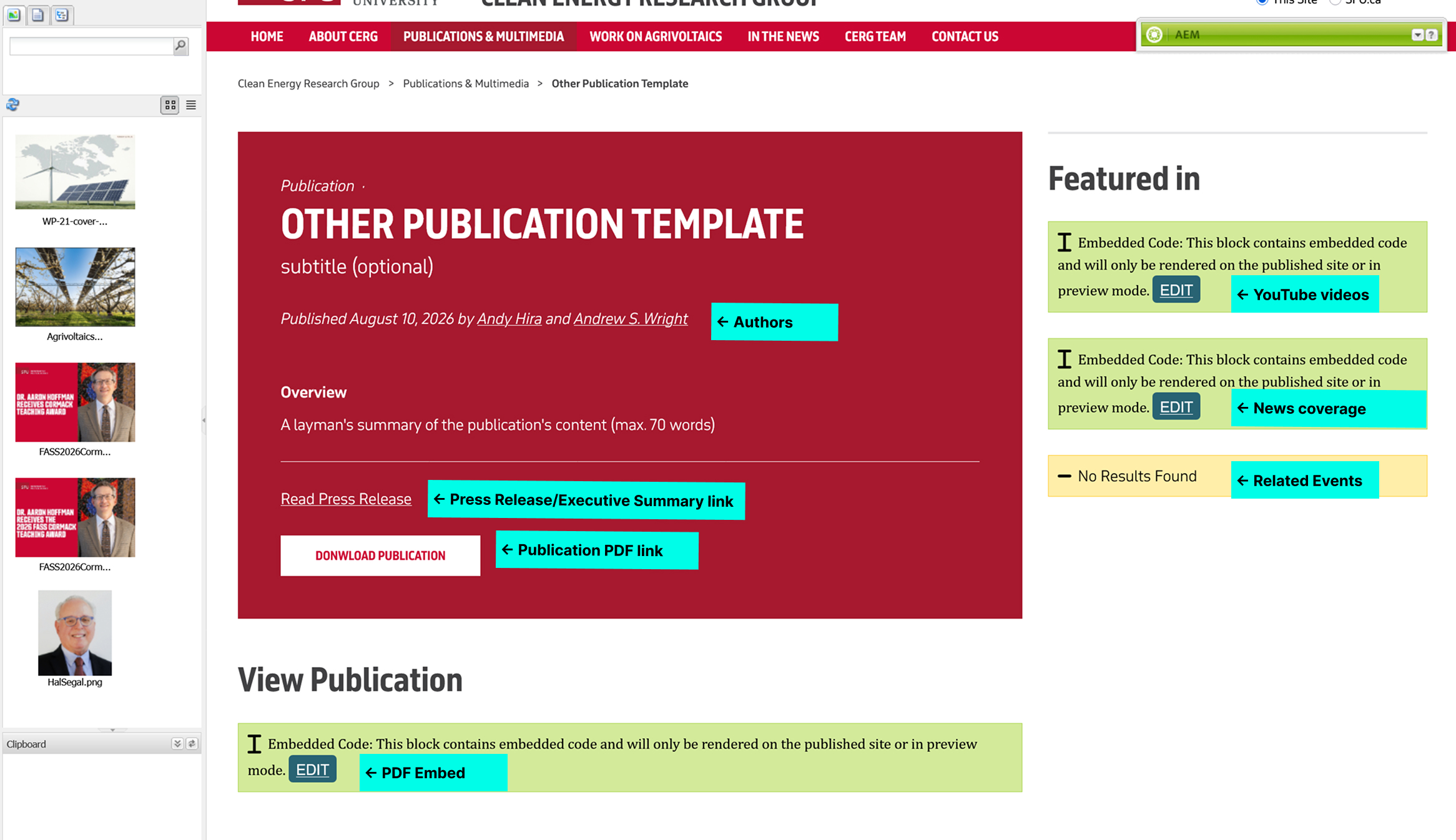
Content to change on the Other Publications page
Adding Authors and Publication Links
- Right click on the red box component and select
Edit. - Enter the names of the authors of the Working Paper, linking to their CERG profile or LinkedIn (if available).
- Change the link of the Press Release link to its PDF. Remove it if there's no Press Release/Executive Summary.
- Change the link of the publication button to the PDF in AEM.
Example: Adding authors and Working Paper PDF link
Adding PDF Embed
- Ensure you've uploaded the PDF to the Google Drive folder and copied the link to the PDF.
- Below the red box, click the green HTML component's
Editbutton. - In the HTML editor, paste the link to the PDF into the quotation marks
""of thesrcattribute. - Change the ending of the link from
/view?usp=drive_linkto/preview. This will allow the PDF to be embedded in the page instead of opening in a new tab. - Save the changes and close the HTML editor.
Example: Adding a Working Paper PDF embed
Adding related YouTube videos
- Beside the red box, click the first green HTML component's
Editbutton. - In the HTML editor, add any video URLs related to the Working Paper in
data-videos.
Follow the instructions in YouTube video feeds to add specific videos to the feed.
Adding a YouTube video to the page
Adding news articles
- In CERG's News Mananger , find the news article that mentions the Working Paper or add it if it's not already there.
- Select the news article and click the
Copy HTMLbutton. - Back in AEM, beside the red box, click the second green HTML component's
Editbutton. - In the HTML editor, paste the HTML code you copied from the news manager.
- Save the changes and close the HTML editor.
To learn more about the CERG News Manager, see Adding a News Item.
Adding a news item to the page
Adding an event
- Edit the list component that says "No Results Found".
- Go to the
Fixed listtab and click the+button. - Find the event under CERG's events page and select it.
- Save the changes.
If you haven't added the event to the website, see Adding an Event.
Adding an event to the page
Activate
You can preview the page by clicking the Preview button in your toolbar and reloading the page.
If everything looks good and the paper is ready for publication, Activate the page to save your changes and publish the paper.